
Introduction
Publishing an Android application on the Google Google Play Store is one of the most important steps in turning your idea into a real product used by millions of people around the world. Whether you are an independent developer, startup founder, software agency, or business owner, learning how to publish app on Google Play Store gives you access to the largest mobile ecosystem on the planet.
Today, Android powers billions of smartphones and tablets globally. The Google Play Store serves as the official marketplace where users discover, download, purchase, and review apps. From productivity tools and games to educational platforms and e-commerce apps, almost every successful Android application begins with a properly managed Google Play Console account and a carefully prepared app submission.
If you are wondering how to upload app on Google Play Store, the process is much easier than many beginners expect. You need to create a developer account, prepare your app bundle, design your store listing, complete policy declarations, and submit the app for review. Once approved, your application becomes available to users in selected countries and can start generating downloads and revenue immediately
What Does It Mean to Publish an App on Google Play Store?
Publishing an app means making your Android application publicly available through the Google Play Store. This process involves more than simply uploading a file.
When you publish an app, you:
- Upload an Android App Bundle (AAB)
- Provide screenshots and graphics
- Write a keyword-optimized app description
- Set pricing and distribution countries
- Complete privacy and data safety disclosures
- Submit the app to Google for policy review
After approval, users can search for your app, install it, leave reviews, and receive automatic updates.
Why Learning How to Publish App on Google Play Store Matters
Publishing on Google Play offers significant advantages.
Global Reach
Your app can become available to users in more than 190 countries.
Monetization Opportunities
You can earn money through:
- Paid downloads
- In-app purchases
- Subscriptions
- Advertising
Automatic Updates
Google Play delivers updates seamlessly to users.
Security and Trust
Users are more likely to install apps distributed through Google Play because they trust Google’s review and security systems.
Analytics and Insights
The Google Play Console provides detailed reports on installs, crashes, ratings, and revenue.
Who Can Upload an App to Google Play Store?
Anyone with a valid Google account and a registered developer account can publish apps.
This includes:
- Beginner developers
- Students
- Freelancers
- Software companies
- Startups
- Enterprises
- Nonprofit organizations
You do not need to be a large company. Many successful apps were launched by solo developers.
How Long Does It Take to Publish an App on Google Play Store?
The time required varies depending on your preparation and Google’s review process.
| Stage | Typical Time |
|---|---|
| Developer account setup | 15–30 minutes |
| Asset preparation | 2–6 hours |
| App upload and listing | 1–3 hours |
| Google review | 1–7 days |
| Public release | Immediate after approval |
For first-time developers, review times may be longer due to additional verification checks.
Benefits of Publishing Your App on Google Play Store
Publishing on Google Play provides both technical and business benefits.
Technical Benefits
- Secure hosting
- App signing by Google
- Automatic update delivery
- Crash monitoring
- Device compatibility analysis
Business Benefits
- Global visibility
- App Store Optimization (ASO)
- Revenue generation
- User reviews and ratings
- Marketing opportunities
Strategic Benefits
- Brand credibility
- Customer acquisition
- Scalable distribution
- Data-driven decision making
Real-World Example: From Idea to Global Launch
Imagine a student in Pakistan develops a simple English learning app.
After learning how to publish app on Google Play Store, they:
- Register a developer account.
- Build and sign an Android App Bundle.
- Create screenshots and descriptions.
- Upload the app to Google Play Console.
- Submit it for review.
- Receive approval after three days.
- Reach users in Pakistan, India, the UK, and the United States.
Within months, the app gains thousands of downloads and generates advertising income.
This is exactly how many successful mobile businesses begin.
Common Challenges First-Time Developers Face
Beginners often encounter several issues.
Technical Challenges
- Generating signed app bundles
- Fixing build errors
- Version code conflicts
Policy Challenges
- Missing privacy policy
- Incorrect data safety declarations
- Restricted permissions
Marketing Challenges
- Weak app descriptions
- Low-quality screenshots
- Poor keyword targeting
The good news is that each of these challenges can be solved with the right preparation.
Key Facts About Google Play Publishing
| Metric | Value |
|---|---|
| Developer registration fee | $25 (one-time) |
| Supported countries | 190+ |
| Review time | Usually 1–7 days |
| Preferred upload format | Android App Bundle (AAB) |
| Update capability | Unlimited |
| Monetization options | Ads, subscriptions, purchases |
Quick Summary: How to Publish App on Google Play Store
The complete process can be summarized in six steps:
- Create a Google Play Developer account.
- Prepare a signed Android App Bundle (AAB).
- Create store listing assets.
- Complete policy and data safety forms.
- Upload the app to Google Play Console.
- Submit for review and publish.
What You Need Before Uploading an App on Google Play Store
Before you can successfully upload and publish your Android application, you need to prepare several important items. Many first-time developers think they can simply build an APK and upload it, but Google requires much more than just the app file.
If you want to learn how to publish app on Google Play Store without facing delays or rejections, preparing everything in advance is essential. A well-organized submission process saves time, reduces errors, and significantly increases the chances of fast approval.
Think of app publishing like launching a product in a supermarket. The product itself is important, but so are the packaging, labels, safety information, and legal documentation. Google Play works the same way.
Essential Requirements Before You Upload an App to Google Play Store
Before starting the Google Play app publishing process, you should have the following:
- A Google account
- A Google Play Developer account
- The one-time $25 registration fee
- Identity verification documents
- A tested Android application
- Signed Android App Bundle (AAB)
- App title and descriptions
- Screenshots and graphics
- Privacy Policy URL
- Data Safety disclosures
- Content Rating information
- Contact details
If any of these items are missing, your app submission may be delayed or rejected.
Create a Google Account
To publish an app, you need a standard Google account. This account will be used to access the Google Play Console, manage your applications, receive notifications, and track revenue.
Best Practices for Your Google Account
- Use a professional email address.
- Enable two-factor authentication.
- Keep recovery information updated.
- Use an account dedicated to your business or app.
For example, instead of using a personal email like myname123@gmail.com, many developers prefer a business-specific account such as developer@yourcompany.com.
Register for a Google Play Developer Account
The developer account is your official publisher identity on Google Play. Without it, you cannot upload apps to the Play Store.
Google offers two account types:
| Account Type | Best For |
|---|---|
| Individual | Solo developers and freelancers |
| Organization | Companies, startups, and agencies |
Individual Account
Suitable if you are publishing apps under your own name.
Organization Account
Recommended if you operate as a registered business and want your company name displayed as the app publisher.
Pay the One-Time Developer Registration Fee
Google charges a one-time $25 USD fee to create a developer account. This is not a recurring annual payment.
Why Google Charges This Fee
The fee helps:
- Reduce spam accounts
- Improve platform quality
- Verify legitimate developers
- Support administrative processes
Compared to many business expenses, this is one of the lowest barriers to entry in the software industry.
Complete Identity Verification
Google now requires stricter identity verification to increase trust and security.
Depending on your account type, you may need:
- Government-issued ID
- Business registration documents
- Address verification
- Phone number confirmation
- Payment verification
Common Accepted Documents
- National ID card
- Passport
- Driver’s license
- Company registration certificate
Ensure that your submitted information matches exactly with your Google Play Console details.
Develop and Test Your Android Application
Before you publish an app on Google Play Store, your application should be stable, secure, and fully functional.
Minimum Testing Checklist
- App launches without crashing
- Navigation works correctly
- Buttons function properly
- Data saves as expected
- Permissions are handled correctly
- Ads display properly (if applicable)
- Purchases work successfully
- Performance is optimized
Recommended Testing Methods
- Physical Android devices
- Android emulators
- Beta testers
- Internal testing track
A polished app dramatically improves user ratings and reduces uninstalls.
Generate a Signed Android App Bundle (AAB)
Google requires most new apps to be uploaded as an Android App Bundle (AAB) instead of a traditional APK.
Why AAB Is Preferred
- Smaller download sizes
- Optimized delivery by device
- Improved performance
- Better security
How to Generate an AAB in Android Studio
- Open your project.
- Select Build.
- Choose Generate Signed Bundle/APK.
- Select Android App Bundle.
- Create or choose a keystore.
- Build the release version.
The resulting .aab file is what you upload to Google Play Console.
Create a Privacy Policy
A Privacy Policy is required for most apps, especially if they collect any user data.
Apps That Usually Need a Privacy Policy
- Apps with analytics
- Apps with advertising
- Login-based apps
- E-commerce apps
- Social apps
- Apps collecting personal data
What a Privacy Policy Should Include
- Data collected
- How data is used
- Third-party services
- Security measures
- Contact information
You can host the policy on your website, blog, or a dedicated privacy page.
Prepare App Store Listing Assets
Your Google Play listing acts as your app’s storefront. Strong visuals and descriptions directly affect download rates.
Required Assets
| Asset | Recommended Size |
|---|---|
| App icon | 512 × 512 px |
| Feature graphic | 1024 × 500 px |
| Phone screenshots | Minimum 2 |
| Short description | Up to 80 characters |
| Full description | Up to 4,000 characters |
Optional Assets
- Promo video
- Tablet screenshots
- TV screenshots
Write SEO-Optimized App Description
Your descriptions help users understand your app and improve App Store Optimization (ASO).
Short Description
A concise statement that highlights the app’s core benefit.
Full Description
Should include:
- Main features
- Key benefits
- Target audience
- Use cases
- Keywords naturally integrated
Example
Learn English faster with interactive lessons, quizzes, and pronunciation practice designed for students and professionals.
Ensure Compliance with Google Play Policies
Google enforces strict policies related to privacy, content, and security.
Key policy areas include:
- User data protection
- Permission usage
- Intellectual property
- Restricted content
- Advertising guidelines
Reading the Google Play Policy Center before submission can prevent costly mistakes.
Prepare Data Safety Information
Google requires developers to disclose what data their apps collect and how it is used.
Possible disclosures include:
- Email addresses
- Location
- Contacts
- Device identifiers
- Purchase history
Incorrect disclosures can lead to app rejection or suspension.
Content Rating Questionnaire
Every app must complete a questionnaire to determine age suitability.
Possible ratings include:
- Everyone
- Teen
- Mature
Providing inaccurate answers may result in removal from the Play Store.
Contact Information
Google requires valid contact details so users and Google can reach you.
Required information typically includes:
- Email address
- Optional phone number
- Optional website
A professional support email increases credibility and trust.
Pre-Publishing Checklist
Before you upload your app to Google Play Store, confirm the following:
- Google account created
- Developer account registered
- $25 fee paid
- Identity verified
- App fully tested
- Signed AAB generated
- Privacy Policy created
- Store assets prepared
- Data Safety information ready
- Content Rating answers prepared
- Contact details added
Common Mistakes to Avoid Before Publishing
- Uploading an unsigned build
- Using duplicate version codes
- Forgetting the Privacy Policy
- Low-quality screenshots
- Incomplete Data Safety disclosures
- Ignoring policy requirements
Avoiding these mistakes can save days or even weeks during the review process.
Case Study: Proper Preparation Leads to Faster Approval
A startup developing a fitness app prepared all required documents before submission. Because they completed the Data Safety form accurately, tested the app thoroughly, and created a detailed Privacy Policy, their app was approved within 48 hours.
Another developer skipped the Privacy Policy and misdeclared permissions, resulting in multiple rejections and a two-week delay.
Preparation makes a significant difference.
Preparing Your App for Google Play Store Upload
Once your Google Play Developer account is active, the next step in learning how to publish app on Google Play Store is preparing your application for release. This is one of the most technical and important parts of the publishing process.
A poorly prepared app can lead to crashes, negative reviews, policy issues, and rejected submissions. A well-optimized app, on the other hand, provides a smooth user experience and significantly improves your chances of approval and long-term success.
Think of this stage as quality assurance before launching a product to millions of Android users worldwide.
Why Proper App Preparation Matters
Before you upload an app to the Google Play Store, Google expects it to be stable, secure, and production-ready.
Proper preparation helps you:
- Reduce app crashes and ANRs (Application Not Responding errors)
- Improve download and install performance
- Meet Google Play technical requirements
- Minimize rejection risks
- Increase positive ratings and reviews
- Improve App Store Optimization (ASO) outcomes
In short, preparation directly impacts both approval speed and user satisfaction
APK vs AAB: Which Format Should You Upload?
Historically, developers uploaded APK files. Today, Google strongly recommends and generally requires new apps to use Android App Bundles (AAB).
APK (Android Package Kit)
A traditional package containing all code and resources in a single file.
AAB (Android App Bundle)
A publishing format that allows Google Play to generate optimized APKs for each user’s device.
APK vs AAB Comparison Table
| Feature | APK | AAB |
|---|---|---|
| File size | Larger | Smaller |
| Device optimization | Limited | Automatic |
| Recommended by Google | No | Yes |
| Dynamic feature support | No | Yes |
| Preferred for new apps | No | Yes |
Why AAB Is Better
- Smaller downloads
- Faster installations
- Lower storage usage
- Improved performance
- Better support for modular apps
For most developers, AAB is the standard format when publishing to Google Play Store.
How to Generate a Signed Android App Bundle (AAB)
The most common way to create an AAB is using Android Studio.
Step-by-Step Process
- Open your project in Android Studio.
- Click Build.
- Select Generate Signed Bundle / APK.
- Choose Android App Bundle.
- Select or create a keystore.
- Enter key passwords.
- Choose the
releasebuild variant. - Complete the build process.
The generated .aab file is located in your project’s release folder.
What Is a Keystore and Why It Matters
A keystore contains the cryptographic keys used to sign your application.
Why App Signing Is Essential
- Verifies app authenticity
- Allows secure updates
- Prevents unauthorized modifications
- Enables Google Play App Signing
Important Security Rule
Always back up your keystore and passwords. Losing them can complicate future updates.
Google Play App Signing
Google offers Play App Signing, where Google securely stores your signing key and signs the final APKs distributed to users.
Benefits
- Enhanced security
- Easier key management
- Support for key upgrades
- Reduced risk of key loss
Most developers should opt into this feature during their first upload.
Set Version Code and Version Name
Every release must include version information.
Version Name
A user-visible label such as 1.0.0.
Version Code
A unique integer that must increase with each release.
Example
| Release | Version Name | Version Code |
|---|---|---|
| Initial launch | 1.0.0 | 1 |
| Bug fix | 1.0.1 | 2 |
| Major update | 2.0.0 | 10 |
If you reuse a version code, Google Play will reject the upload.
Optimize App Size
Smaller apps download faster and have higher installation rates, especially in regions with slower internet connections.
Techniques to Reduce App Size
- Remove unused resources
- Compress images
- Enable code shrinking with R8/ProGuard
- Use vector graphics
- Modularize features
- Prefer Android App Bundles
Why Size Matters
Studies consistently show that larger apps experience higher abandonment during download and installation.
Test Your App Thoroughly
Testing is critical before you submit an app to Google Play Console.
Functional Testing
Verify all features and user flows.
Performance Testing
Measure launch time, memory usage, and responsiveness.
Compatibility Testing
Test on different screen sizes and Android versions.
Security Testing
Ensure sensitive data is protected.
Monetization Testing
Validate ads, subscriptions, and in-app purchases.
Recommended Testing Devices
Use a combination of:
- Physical Android phones
- Tablets
- Android emulators
- Beta tester devices
Testing across multiple environments helps uncover device-specific issues.
Internal, Closed, and Open Testing Tracks
Google Play provides built-in testing environments.
| Testing Track | Best For |
|---|---|
| Internal Testing | Quick testing with a small team |
| Closed Testing | Selected groups of testers |
| Open Testing | Large public beta audience |
Starting with Internal Testing is highly recommended for beginners.
Fix Crashes and ANR
Crashes and Application Not Responding errors are among the top reasons for poor reviews.
Tools to Detect Problems
- Android Studio Logcat
- Firebase Crashlytics
- Google Play Console reports
Best Practices
- Handle exceptions properly
- Test edge cases
- Optimize background tasks
- Monitor memory usage
Ensure Permission Compliance
Request only permissions that are necessary for your app’s functionality.
Examples:
- Camera access for photo capture
- Location for navigation apps
- Storage for file managers
Sensitive permissions require additional disclosures and may trigger manual review.
Remove Debug Code and Test Data
Before release, ensure that:
- Debug logging is minimized
- Test accounts are removed
- Development endpoints are disabled
- Sample data is cleaned up
This reduces security risks and improves professionalism.
Verify Privacy and Security
Confirm that your app:
- Uses HTTPS connections
- Encrypts sensitive information
- Handles authentication securely
- Includes a valid Privacy Policy
- Complies with data protection requirements
Security issues can result in rejection or user distrust.
Release Readiness Checklist
Before uploading your AAB, confirm:
- Release build created
- App signed correctly
- Version code incremented
- Crashes fixed
- Permissions reviewed
- App size optimized
- Privacy protections verified
- Tested on multiple devices
Common Technical Errors Before Upload
| Error | Cause | Solution |
|---|---|---|
| Duplicate version code | Reusing an old code | Increase version code |
| Unsigned bundle | Release signing missing | Generate signed AAB |
| App crashes on launch | Unhandled exceptions | Thorough testing |
| Excessive permissions | Unnecessary access requests | Remove unused permissions |
| Large file size | Unoptimized assets | Compress resources |
Real-World Example
A startup preparing a language-learning app reduced its size from 85 MB to 28 MB by converting images to vector assets and enabling code shrinking. They tested on 20 devices, fixed startup crashes, and launched with excellent reviews and high retention.
Another developer uploaded an untested release that crashed on Android 14 devices, resulting in negative reviews and rapid uninstall rates.Preparation directly affects success.
Expert Tips for a Successful First Releas
- Use Android App Bundles.
- Back up your keystore securely.
- Increment version codes carefully.
- Run extensive testing.
- Start with Internal Testing.
- Monitor Crashlytics.
- Optimize app size before launch.
Assets Required to Upload App on Google Play Store
When learning how to publish app on Google Play Store, many developers focus only on the technical side of building and uploading the app. However, your visual assets and store listing content are equally important.
These assets are what potential users see before they decide whether to install your app. Even if your application is technically excellent, poor screenshots, weak descriptions, or an unattractive icon can significantly reduce download rates.
Think of your Google Play listing as your app’s digital storefront. Just as product packaging influences buying decisions in retail stores, your app assets determine whether visitors become users.
Why App Store Assets Matter
Your Google Play Store listing serves three critical purposes:
- Attract Attention – Icons and screenshots help your app stand out.
- Communicate Value – Descriptions explain what your app does and why users should install it.
- Increase Conversions – Strong visuals and copy improve install rates.
Effective assets contribute to App Store Optimization (ASO) and can dramatically increase downloads without additional advertising.
Complete List of Required Assets
Before you upload your app to the Google Play Store, prepare the following:
- App title
- Short description
- Full description
- High-resolution app icon
- Feature graphic
- Phone screenshots
- Tablet screenshots (optional but recommended)
- Promo video (optional)
- Privacy Policy URL
- Contact information
Having all assets ready before opening the Google Play Console makes the publishing process much smoother.
App Title (Application Name)
The app title is the first text users notice in search results and on your store page.
Title Requirements
- Maximum 30 characters (subject to current Google limits)
- Clear and memorable
- Includes your main keyword when relevant
- Avoids promotional claims such as “Best” or “#1”
Good Examples
- Learn English Daily
- FitTrack Workout Planner
- Budget Manager Pro
SEO Tip
Naturally include a descriptive keyword to improve discoverability.
Short Description
The short description appears near the top of your listing and should quickly explain the core benefit.
Character Limit
Up to 80 characters.
Best Practices
- Highlight the primary use case
- Focus on user benefits
- Include important keywords naturally
Example
Learn English with interactive lessons, quizzes, and pronunciation practice.
Full Description
The full description gives you up to 4,000 characters to explain your app in detail.
Recommended Structure
- Problem your app solves
- Key features
- Main benefits
- Target audience
- Call to action
Example Sections
- Interactive lessons
- Offline learning support
- Progress tracking
- Daily practice reminders
ASO Tips
Use relevant keywords naturally, including variations such as:
- how to publish app on Google Play Store
- Android learning app
- English practice app
Avoid keyword stuffing; readability should always come first.
High-Resolution App Icon
Your icon is often the single most important visual element.
Recommended Specifications
| Requirement | Value |
|---|---|
| Size | 512 × 512 pixels |
| Format | PNG |
| Maximum File Size | 1024 KB |
| Shape | Square (Google applies masking) |
Design Tips
- Use simple, recognizable symbols
- Limit text
- Maintain strong contrast
- Ensure visibility at small sizes
A professional icon can significantly improve click-through rates.
Feature Graphic
The feature graphic is used across Google Play promotional surfaces.
Specifications
| Requirement | Value |
|---|---|
| Size | 1024 × 500 pixels |
| Format | PNG or JPG |
Best Practices
- Showcase your app branding
- Use clean typography
- Avoid clutter
- Highlight your unique selling proposition
This asset is particularly important if you plan to run promotional campaigns.
Screenshots
Screenshots demonstrate the app experience and are among the strongest conversion drivers.
Minimum Requirements
At least two phone screenshots are generally required.
Recommended Number
5 to 8 high-quality screenshots.
Screenshot Strategy
- Show your most valuable features first.
- Add short explanatory captions.
- Use consistent branding.
- Display real in-app content.
Example Sequence
- Home screen
- Main feature
- Progress dashboard
- Settings
- Premium features
Tablet Screenshots (Optional but Valuable)
If your app supports tablets, adding tablet screenshots broadens your reach and demonstrates optimization for larger screens.
Promo Video (Optional)
A video can help users understand your app more quickly.
Recommended Platform
Upload a trailer to YouTube and link it in your store listing.
Effective Video Elements
- Problem introduction
- Feature demonstrations
- Real-world use cases
- Call to action
While optional, videos can improve engagement and trust.
Category and Tags
Choosing the correct category helps Google classify your app.
Common Categories
- Education
- Productivity
- Health & Fitness
- Finance
- Games
Tags
Use tags that accurately reflect your app’s functionality and audience.
Contact Information
Provide valid contact details to build trust and meet Google requirements.
Recommended Information
- Support email (required)
- Website (optional but recommended)
- Phone number (optional)
A dedicated support email such as support@yourapp.com looks more professional than a generic personal address.
Privacy Policy URL
Most apps require a publicly accessible Privacy Policy.
Where to Host It
- Your website
- Blog page
- Static webpage
What It Should Cover
- Data collected
- How data is used
- Third-party services
- Security practices
- Contact information
Localization Assets
To reach global audiences, translate descriptions and screenshots into multiple languages.
Benefits of Localization
- Higher conversion rates
- Better rankings in regional searches
- Increased international downloads
For developers targeting countries such as Pakistan, India, and the Middle East, localized listings can substantially boost growth.
Image Optimization Tips
Large images can slow uploads and reduce efficiency.
Best Practices
- Compress PNG and JPG files
- Maintain sharp text
- Use consistent branding
- Test readability on mobile screens
Conversion Optimization Tips
High-performing app listings usually share several characteristics:
- Clear and recognizable icon
- Benefit-focused short description
- Persuasive full description
- Screenshots with captions
- Strong feature graphic
- Positive reviews
Even small improvements in these assets can meaningfully increase installs.
Common Asset Mistakes
Avoid these frequent errors:
- Low-resolution screenshots
- Generic icons
- Keyword stuffing
- Outdated UI images
- Broken Privacy Policy links
- Missing captions
These issues can reduce credibility and hurt download performance.
Real-World Example
A productivity app initially launched with plain screenshots and a weak icon. After redesigning the icon, adding feature captions, and rewriting the description, its install conversion rate increased by more than 40%.
This demonstrates how store assets directly impact growth.
Asset Preparation Checklist
- App title finalized
- Short description written
- Full description optimized
- 512 × 512 app icon created
- 1024 × 500 feature graphic designed
- 5–8 screenshots prepared
- Privacy Policy URL published
- Contact information added
- Optional promo video uploaded
Frequently Asked Questions About How to Publish App on Google Play Store
How do I publish an app on Google Play Store?
To publish an app on the Google Play Store, you need to create a developer account, pay the one-time $25 registration fee, prepare a signed Android App Bundle (AAB), complete your store listing, fill out policy forms, and submit the app through the Google Play Console for review. Once approved, your app becomes available to users worldwide.
How do I upload an app to Google Play Store step by step?
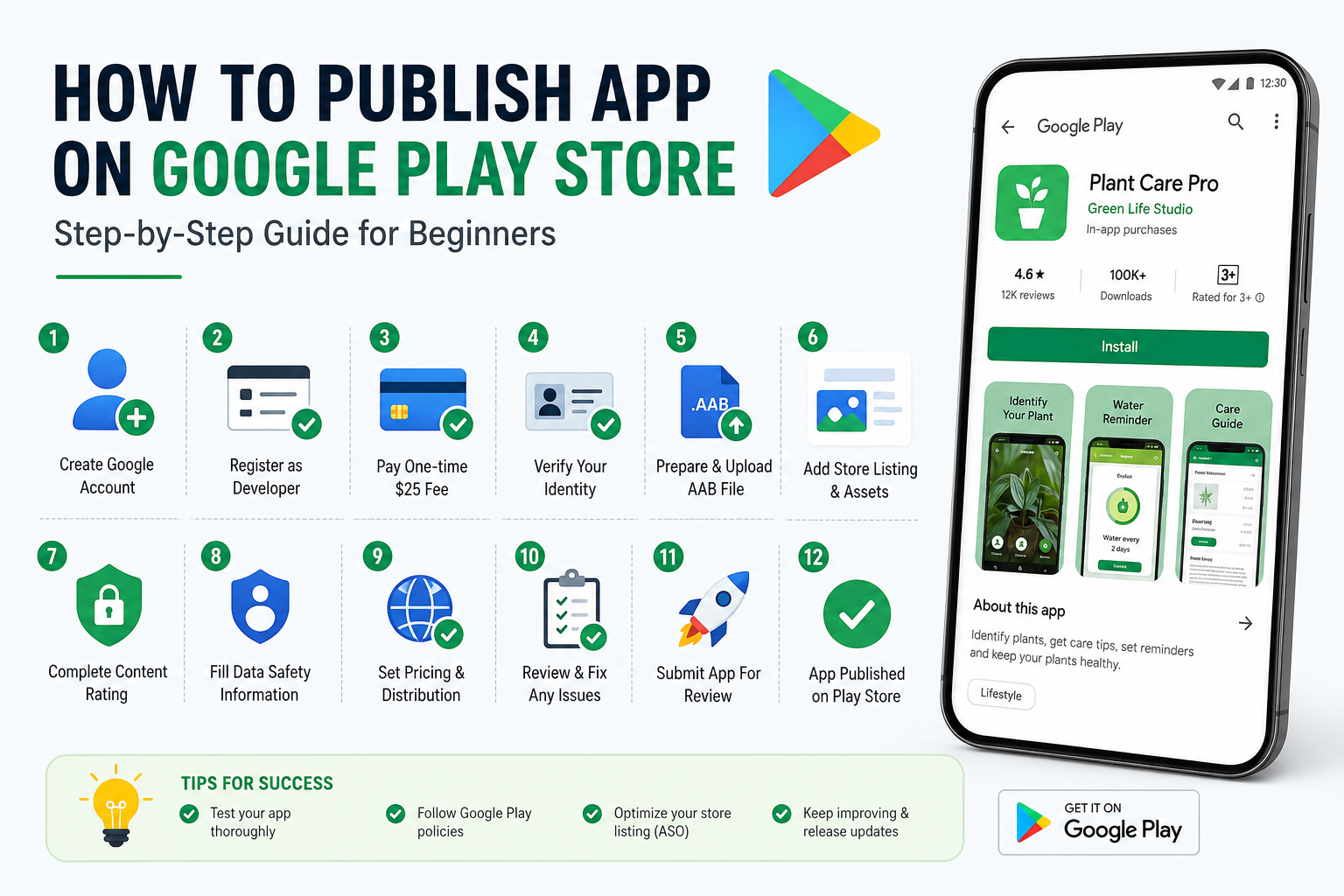
The process can be summarized in these steps:
- Create a Google account.
- Register a Google Play Developer account.
- Pay the one-time $25 fee.
- Verify your identity.
- Build a signed Android App Bundle (AAB).
- Prepare app icons, screenshots, and descriptions.
- Create a new app in Google Play Console.
- Upload the AAB file.
- Complete Data Safety and Content Rating forms.
- Set pricing and country distribution.
- Create a production release.
- Submit the app for review.
How much does it cost to publish an app on Google Play Store?
Google charges a one-time developer registration fee of $25 USD. There are no annual renewal charges for the developer account. Additional costs may include app development, graphic design, testing, hosting, and marketing.
Can I publish an app on Google Play Store for free?
You must pay the mandatory $25 one-time fee to create a developer account. After that, you can upload and publish unlimited apps without paying additional publishing fees.
How long does it take for Google to approve an app?
Most apps are reviewed within 1 to 7 days, although some approvals happen in 24–48 hours. First-time developers and apps using sensitive permissions may experience longer review times.
What file format should I upload to Google Play Store?
The recommended and commonly required format for new apps is the Android App Bundle (AAB). This format allows Google to generate optimized APKs for each device, resulting in smaller downloads and better performance.
What is the difference between APK and AAB?
| Feature | APK | AAB |
|---|---|---|
| Format Type | Install package | Publishing format |
| File Size | Larger | Smaller |
| Device Optimization | Limited | Automatic |
| Recommended by Google | No | Yes |
AAB is the preferred format for modern Android app publishing.
Do I need Android Studio to publish an app?
While not strictly required, Android Studio is the most common tool for building and signing Android applications. You can also use other development environments such as Flutter, React Native, and Unity.
Can beginners publish apps on Google Play Store?
Yes. Anyone with a Google account, a valid payment method, and a working Android app can create a developer account and publish apps. Many successful applications were launched by students and first-time developers.
Do I need a Privacy Policy to publish my app?
In most cases, yes. If your app collects personal information, uses analytics, displays ads, or requires user accounts, a publicly accessible Privacy Policy is typically required.
What is the Data Safety section in Google Play Console?
The Data Safety section is where you disclose what user data your app collects, how it is used, and whether it is shared with third parties. Accurate disclosures are essential for policy compliance.
Can I update my app after publishing it?
Yes. You can upload new versions at any time by increasing the version code and version name, then creating a new release in Google Play Console.
Can I publish paid apps and subscriptions?
Yes. By linking a Google Payments merchant account, you can sell:
- Paid apps
- In-app purchases
- Subscriptions
What happens if my app is rejected?
Google provides a detailed explanation of the policy or technical issue. After correcting the problem, you can resubmit the app. If you believe the rejection was made in error, you may submit an appeal.
How many apps can I publish with one developer account?
There is no fixed limit. After paying the one-time registration fee, you can publish multiple apps under the same developer account, provided they comply with Google Play policies.
Can I publish apps worldwide?
Yes. You can choose to make your app available in more than 190 countries and regions, or restrict distribution to selected markets.
How do I improve my app’s ranking in Google Play Store?
Use App Store Optimization (ASO) best practices:
- Include relevant keywords in the title and descriptions
- Design a professional app icon
- Use high-quality screenshots
- Encourage positive reviews
- Improve retention and engagement
- Localize your store listing
Is Google Play Console free to use after registration?
Yes. After the one-time $25 registration fee, the Google Play Console is free to use for publishing, updating, and managing your apps.
Can I delete my app from Google Play Store?
Yes. You can unpublish an app so new users cannot install it, while existing users may continue using it unless you fully remove support.
What is the most important tip for first-time developers?
Prepare everything before starting the submission process:
- Signed Android App Bundle (AAB)
- Screenshots and graphics
- Privacy Policy
- Data Safety information
- Content Rating answers
Proper preparation makes publishing faster and reduces the chance of rejection.
Conclusion: How to Publish App on Google Play Store Successfully
Learning how to publish app on Google Play Store is one of the most valuable skills for Android developers, startups, entrepreneurs, and businesses. By understanding the complete publishing process, you can transform your application from a local project into a globally available product used by millions of Android users.
The journey begins with creating a Google account and registering a developer account through the Google Play Console. After paying the one-time $25 registration fee, you prepare a signed Android App Bundle (AAB), design compelling store assets, complete required policy forms, and submit your app for review. Once approved, your app becomes available on Google Play, where users can discover, install, review, and update it automatically.
Although the process may seem complex at first, it becomes straightforward when broken into manageable steps. The most successful developers focus on three key areas:
- Technical Quality – Build a stable, secure, and well-tested application.
- Policy Compliance – Complete Data Safety, Content Rating, and Privacy Policy requirements accurately.
- App Store Optimization (ASO) – Use strong titles, descriptions, icons, and screenshots to maximize conversions.
Publishing your Android app on Google Play offers tremendous opportunities, including global distribution, monetization through ads and subscriptions, automatic updates, and access to powerful analytics. Whether you are launching a simple educational tool, a business application, or the next viral game, the Google Play Store provides the infrastructure to reach users in more than 190 countries.
Final Publishing Checklist
Before clicking the Publish button, confirm that you have completed the following:
- Created and verified a Google Play Developer account
- Paid the one-time $25 registration fee
- Built and signed an Android App Bundle (AAB)
- Tested the app on multiple devices
- Prepared screenshots, app icon, and feature graphic
- Written SEO-optimized store descriptions
- Published a Privacy Policy
- Completed Data Safety and Content Rating forms
- Configured pricing and country distribution
- Reviewed all warnings and errors
hiw