
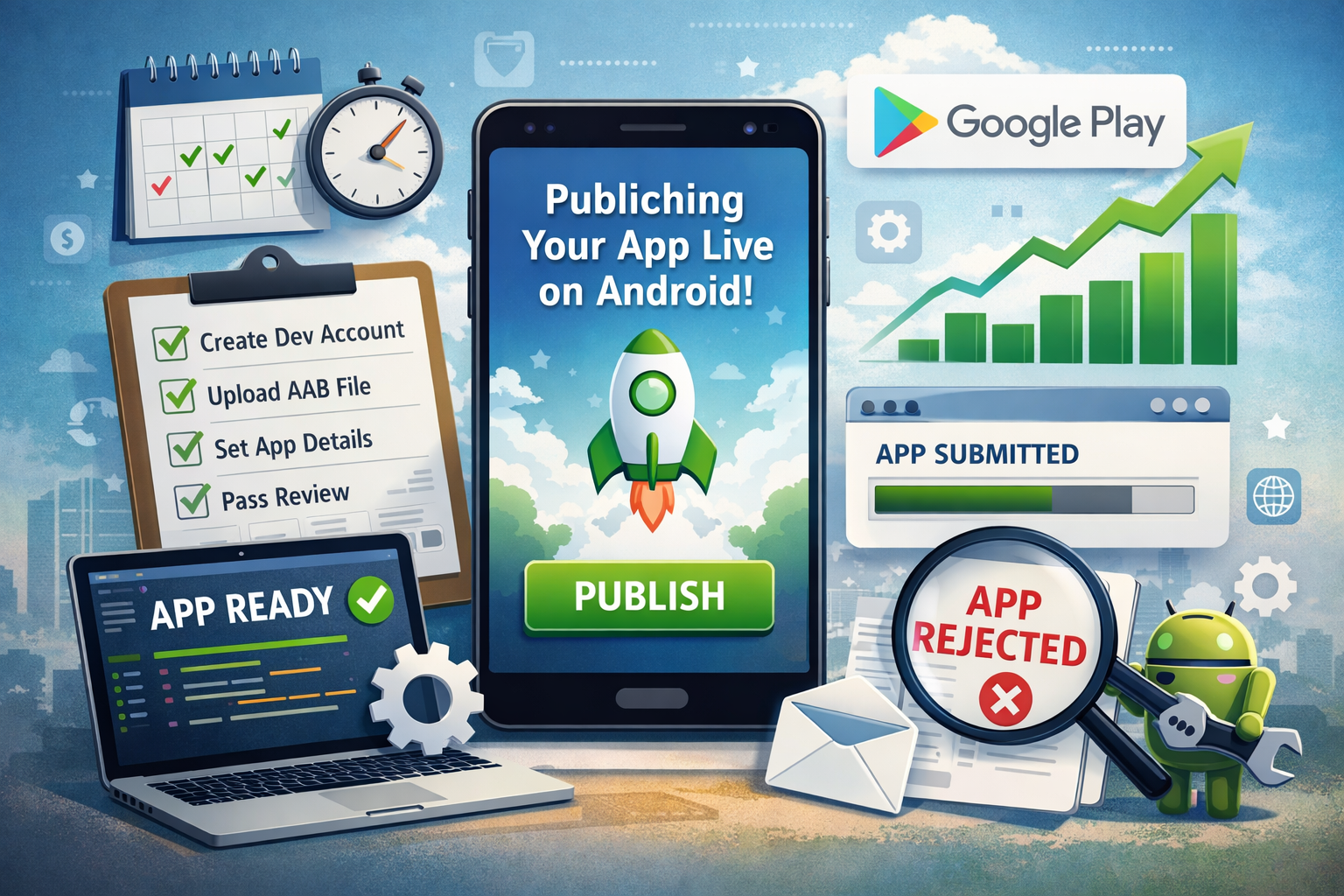
Publishing an app on Android can feel overwhelming, especially if it’s your first time. From developer accounts and technical requirements to Google Play policies and approvals, there are many moving parts. This guide is designed to simplify the entire process and clearly explain how to get app live on Android, step by step, using simple language and practical examples.
Whether you are an indie developer, startup founder, or business owner, understanding how to make your app live on Android is essential if you want to reach millions of users worldwide. Android dominates the global mobile market, making Google Play one of the most powerful app distribution platforms available today.
In this guide, you will learn:
- What it really means to get an app live on Android
- The exact requirements needed before publishing
- A step-by-step process to publish your app on Google Play
- Common mistakes that cause app rejections and how to avoid them
By the end, you will have a clear roadmap for launching your Android app with confidence.
What Does “Getting an App Live on Android” Mean?
Getting an app live on Android means successfully publishing your mobile application on the Google Play Store so users can find, download, and install it on their Android devices. Until an app is live, it exists only on your computer or test devices and is not accessible to the public.
When people search for how to get app live on Android, they are usually asking about the entire publishing lifecycle, not just uploading a file. This process includes technical preparation, store listing optimization, policy compliance, and Google’s review and approval stage.
Building an App vs Publishing an Android App
| Building an App | Getting App Live on Android |
|---|---|
| Writing code and designing UI | Submitting app to Google Play |
| Testing on emulator or device | Passing Google Play review |
| App stored locally | App available worldwide |
| No users | Real users downloading |
Building an Android app is only half the journey. Publishing it is what transforms your app into a real product.
How Users Access Live Android Apps
Once your app is live on Android:
- It appears in Google Play search results
- Users can install it directly on their devices
- It can receive ratings, reviews, and updates
- You can track installs, crashes, and performance using Google Play Console
Fact: Google Play hosts over 3.5 million Android apps, and thousands of new apps go live every day. Proper preparation is what helps your app stand out.
Why Understanding This Step Matters
Many apps fail or get rejected simply because developers misunderstand what “getting app live on Android” involves. Google Play has strict rules around:
- App security
- User data and privacy
- Content and permissions
Skipping even one requirement can delay your launch by days or weeks.
Understanding this concept upfront helps you:
- Avoid unnecessary rejections
- Launch faster
- Build trust with users from day one
Requirements to Get App Live on Android
Before you can publish and make your app live on Android, you must meet several technical, legal, and platform-specific requirements. Skipping or misunderstanding any of these steps is one of the most common reasons apps get rejected or delayed during review.
This section breaks down everything you need before submitting your app to Google Play, in a clear and practical way.
Google Play Developer Account
To get an app live on Android, you must have a Google Play Developer account. This account gives you access to the Google Play Console, where you upload, manage, and monitor your apps.
Key facts about a Google Play Developer account:
- One-time registration fee: $25 (paid once, not yearly)
- Account type: Individual or Organization
- Approval time: Usually instant, but verification can take up to 48 hours
- Number of apps allowed: Unlimited
You can create your account by signing in with a Google account and completing identity verification.
Tip: If you are publishing apps for a business or startup, always choose an Organization account. It builds trust and avoids ownership issues later.
Android App Technical Requirements
Google Play enforces strict technical standards to ensure app quality and security. Meeting these requirements is essential to get your app live on Android.
App Bundle (AAB) Requirement
Google Play now requires Android App Bundles (AAB) instead of APK files for new apps.
Why Google uses AAB:
- Smaller install size for users
- Better performance optimization
- Device-specific delivery
Fact: Apps using AAB can be up to 15–20% smaller than traditional APKs.
SDK Version Requirements
Your app must meet Android’s SDK standards:
- Minimum SDK: Oldest Android version your app supports
- Target SDK: Latest Android version required by Google
- Compile SDK: Used during app development
Google updates these requirements every year, so keeping your app updated is critical.
Device and Compatibility Standards
Your app must:
- Run without crashing
- Support common screen sizes
- Handle orientation changes
- Work on real devices, not just emulators
Apps that crash or behave inconsistently are often rejected.
Legal and Policy Requirements
Understanding Google Play’s legal and policy rules is just as important as technical preparation when learning how to get app live on Android.
Google Play Policies
Your app must comply with Google Play’s policies related to:
- User data collection
- Ads and monetization
- Intellectual property
- Restricted content
Violations can result in rejection or permanent account suspension.
Privacy Policy Requirement
If your app:
- Collects user data
- Uses permissions like location, camera, or contacts
- Shows ads
Then a privacy policy is mandatory.
Your privacy policy must:
- Be publicly accessible
- Clearly explain data usage
- Match your app’s actual behavior
Case Study: In 2023, Google removed thousands of apps for having misleading or missing privacy policies, even when the apps worked perfectly.
App Content and Permissions
Only request permissions your app truly needs. Over-requesting permissions:
- Raises user distrust
- Increases rejection risk
- Lowers install rates
How to Prepare Your App Before Publishing on Android
Proper preparation is one of the most important steps in learning how to get app live on Android successfully. Even a well-built app can be rejected or receive poor reviews if it is not thoroughly prepared before submission.
Google Play prioritizes user experience, stability, and security. Preparing your app correctly not only improves approval chances but also helps you launch with confidence and professionalism.
Test Your Android App Thoroughly
Testing is not optional. It is a core requirement if you want to get your app live on Android without delays.
Functional Testing
Functional testing ensures that every feature works as intended. Test all core flows such as:
- User registration and login
- Navigation between screens
- Form submissions
- Payment processing (if applicable)
Check for edge cases like invalid inputs and slow network conditions.
Fact: According to Google, apps with frequent crashes are significantly more likely to be rejected or uninstalled within the first 24 hours.
Performance and Crash Testing
Your app should run smoothly under normal usage. Pay close attention to:
- App launch time
- Screen transitions
- Background processes
- Memory and CPU usage
Use tools like:
- Android Studio Profiler
- Firebase Crashlytics
- Google Play Console pre-launch reports
These tools help identify issues before real users experience them.
Multi-Device and OS Testing
Android devices vary widely. Test your app on:
- Different screen sizes
- Multiple Android versions
- Real devices, not just emulators
An app that works on only one device is a common reason for negative reviews.
Optimize App Performance and Size
App performance directly affects user satisfaction and Google Play rankings.
Reduce App Size
Smaller apps install faster and convert better. To optimize size:
- Remove unused resources
- Compress images and media
- Use vector drawables where possible
- Enable ProGuard or R8 for code shrinking
Data Insight: Apps under 50MB see higher install completion rates, especially in emerging markets.
Improve Speed and Stability
Focus on:
- Reducing cold start time
- Avoiding unnecessary background tasks
- Handling network failures gracefully
Fast apps feel more professional and trustworthy.
How to Get App Live on Android Step by Step
This is the core section of the guide. If you are searching for how to get app live on Android, the steps below walk you through the exact Google Play publishing process, from account setup to final approval.
Follow these steps carefully to avoid delays, rejections, or unnecessary revisions.
Step 1: Create a Google Play Developer Account
To make your app live on Android, you must first create a Google Play Developer account.
How to do it:
- Sign in with your Google account
- Visit the Google Play Developer Console
- Pay the one-time $25 registration fee
- Complete identity verification
Once approved, you’ll gain access to the Google Play Console dashboard.
Tip: Use a professional email address tied to your business or brand for long-term credibility.
Step 2: Create a New App in Google Play Console
After logging into the console:
- Click “Create app”
- Choose your default language
- Enter your app name (this can be changed later)
- Select whether the app is free or paid
This step sets the foundation for your app’s store presence.
Step 3: Upload Your Android App Bundle (AAB)
Google Play requires Android App Bundles (AAB) for new apps.
To upload your AAB file:
- Build the AAB using Android Studio
- Navigate to Release → Production
- Upload the AAB file
- Add release notes
Ensure the app bundle:
- Is signed correctly
- Uses the correct version code
- Matches your store listing content
Common mistake: Uploading a debug build instead of a signed release build.
Step 4: Add App Store Listing Details
Your store listing plays a huge role in downloads and discoverability.
Required Fields
- App title (max 30 characters)
- Short description (max 80 characters)
- Full description (up to 4,000 characters)
SEO Tips for Descriptions:
- Include variations of how to get app live on Android naturally
- Focus on benefits, not just features
- Use short paragraphs and bullet points
Fact: Apps with optimized descriptions rank higher in Google Play search results.
Step 5: Upload App Screenshots and Graphics
Visual assets are critical for conversion.
Required Visual Assets
| Asset Type | Recommended Size |
|---|---|
| App icon | 512 × 512 px |
| Screenshots | 1080 × 1920 px |
| Feature graphic | 1024 × 500 px |
Best practices:
- Use real in-app screenshots
- Highlight key features visually
- Avoid text-heavy images
Step 6: Set App Content and Privacy Details
This step ensures compliance with Google Play policies.
Content Rating
- Complete the content rating questionnaire
- Choose appropriate age categories
- Be honest about app functionality
Privacy Policy
If your app collects user data:
- Add a valid privacy policy URL
- Ensure it matches actual data usage
- Clearly explain permissions
Apps without accurate privacy disclosures are frequently rejected.
Step 7: Configure Pricing and Distribution
Decide where and how your app will be available.
Key choices include:
- Free vs paid app
- Countries and regions
- Device availability
Note: Once an app is marked as paid, it cannot be changed to free.
Step 8: Review and Publish Your Android App
Before submitting, Google Play provides a review checklist.
Final steps:
- Review all sections for errors
- Fix warnings or missing fields
- Click “Publish”
Your app is now submitted for Google review.
What Happens After Submission?
- Google reviews your app for compliance
- Review time ranges from a few hours to several days
- You’ll receive email updates about approval or rejection
Once approved, your app officially becomes live on Android.
How Long Does It Take to Get App Live on Android?
One of the most common questions developers ask after learning how to get app live on Android is how long the entire approval process takes. The answer depends on several factors, including your account history, app complexity, and policy compliance.
Understanding the timeline helps you plan launches, marketing campaigns, and updates more effectively.
Typical Google Play Review Time
For most apps, Google Play review times fall within the following range:
| App Type | Average Review Time |
|---|---|
| First-time app submission | 2–7 days |
| App updates | A few hours to 3 days |
| Simple apps (tools, utilities) | Under 48 hours |
| Apps with sensitive permissions | Up to 7 days or more |
Fact: Google introduced extended reviews for new developer accounts to reduce spam and improve user trust.
Factors That Can Delay App Approval
Several factors can slow down the process of getting your app live on Android:
New Developer Accounts
First-time developers are reviewed more carefully. Expect longer review times during your first submission.
App Permissions and Data Usage
Apps that request:
- Location access
- Background data usage
- Camera or microphone permissions
often undergo deeper inspection.
Policy or Metadata Issues
Common delays include:
- Missing privacy policy
- Misleading app descriptions
- Incomplete store listing fields
Fastest Way to Get App Live on Android
To speed up approval:
- Follow Google Play policies strictly
- Use only necessary permissions
- Ensure metadata matches app behavior
- Test thoroughly before submission
Pro Tip: Apps with clean metadata and minimal permissions often get approved within 24–48 hours.
What Happens During Google Play Review?
During review, Google checks:
- App stability and crash reports
- Data safety disclosures
- Content compliance
- User experience quality
If issues are found, your app will be rejected with a detailed explanation.
Summary Timeline
- Best case: App live in a few hours
- Average case: 2–5 days
- Worst case: Over a week (policy issues or sensitive permissions)
Planning ahead helps avoid last-minute stress.
Common Reasons Android Apps Get Rejected
Even developers who understand how to get app live on Android often face rejections during their first submission. Google Play enforces strict quality and policy standards to protect users, and even small mistakes can lead to delays.
Knowing the most common rejection reasons helps you avoid costly resubmissions and speeds up the approval process.
Policy Violations
Policy violations are the number one reason Android apps fail to go live.
Misleading App Content
Your app description must accurately represent what the app does. Common issues include:
- Promising features that don’t exist
- Using misleading keywords
- Copying content from other apps
Example: An app claiming “free downloads” but requiring payment after install will almost always be rejected.
Restricted or Prohibited Content
Google Play restricts:
- Adult content
- Hate speech
- Gambling features (without approval)
- Copyrighted material
Apps violating these rules are rejected immediately.
Technical Issues
Even if your app follows all policies, technical problems can prevent it from going live on Android.
App Crashes and ANRs
Apps that crash on launch or during normal usage are frequently rejected.
Common causes include:
- Missing API keys
- Poor error handling
- Incompatible SDK versions
Google’s automated testing detects these issues quickly.
Poor User Experience
Apps with:
- Broken navigation
- Unresponsive buttons
- Slow loading times
are flagged as low-quality.
Fact: Apps with frequent crashes have significantly lower retention and higher uninstall rates.
Incomplete or Low-Quality Store Listing
Your store listing is part of the review process.
Missing Required Information
Rejections often happen due to:
- Missing privacy policy
- No content rating
- Unfinished descriptions
Low-Quality Visual Assets
Using:
- Blurry screenshots
- Placeholder images
- Incorrect image dimensions
can delay approval.
Permission and Data Safety Issues
Overusing permissions is a red flag.
Examples include:
- Requesting location for a calculator app
- Accessing contacts without clear justification
- Failing to disclose data collection
Google compares permissions against app functionality.
Summary of Rejection Reasons
| Category | Common Issue |
|---|---|
| Policy | Misleading descriptions |
| Technical | App crashes |
| Metadata | Missing privacy policy |
| Permissions | Over-requesting access |
Avoiding these mistakes dramatically increases your chances of getting your app live on Android on the first attempt.
How to Fix Rejected Apps and Resubmit on Google Play
Getting a rejection after learning how to get app live on Android can be frustrating, but it’s not the end of the road. Most Android apps are approved after one or two revisions. The key is understanding why your app was rejected and responding correctly.
Google provides clear feedback, and if you address it properly, approval usually follows.
Understand the Rejection Email
When Google rejects your app, you’ll receive an email and a notification inside Google Play Console.
The rejection notice typically includes:
- The specific policy violated
- A short explanation of the issue
- Links to relevant policy documentation
Important: Never ignore or argue with the rejection without making changes. Google expects action, not explanations.
Identify the Root Cause
Before making changes, identify the real issue behind the rejection.
Common Root Causes
- App behavior doesn’t match store listing
- Permissions not justified
- Privacy policy mismatch
- App crashes during review
Fixing symptoms without addressing the root cause often leads to repeated rejections.
Make Required Changes Correctly
Once you identify the issue, apply changes carefully.
For Policy Violations
- Update app functionality or remove restricted features
- Revise descriptions to reflect actual behavior
- Remove copyrighted or misleading content
For Technical Issues
- Fix crashes and ANRs
- Improve performance
- Update SDK versions
For Metadata Issues
- Add missing information
- Improve screenshots
- Clarify privacy disclosures
Tip: Always test the updated version before resubmitting.
Resubmitting Your App on Google Play
After making corrections:
- Upload a new app bundle with a higher version code
- Update store listing if needed
- Add clear release notes explaining changes
- Submit for review again
Apps that clearly address feedback often get approved faster during resubmission.
What Not to Do After Rejection
Avoid these common mistakes:
- Re-uploading the same build without changes
- Creating a new developer account
- Ignoring policy documentation
These actions can lead to longer delays or account suspension.
Case Study: Fast Approval After Rejection
A productivity app was rejected for missing privacy disclosures. After:
- Adding a detailed privacy policy
- Updating data safety forms
- Reducing unnecessary permissions
The app was approved within 24 hours on resubmission.
Best Practices to Get Your Android App Approved Faster
If you want to master how to get app live on Android efficiently, following best practices can save you days or even weeks. These strategies are based on common approval patterns and Google Play’s quality guidelines.
Apps that follow these practices not only get approved faster but also perform better after launch.
Follow Google Play Policies From Day One
The most effective way to get your app live on Android quickly is to design with policies in mind.
Best practices include:
- Read relevant Google Play policy sections before development
- Avoid restricted features unless absolutely necessary
- Keep content appropriate for your target audience
Quote from Google Play:
“Policy-compliant apps provide safer, more trusted experiences for users.”
Use Only Necessary Permissions
Permissions are one of the first things Google checks.
Permission best practices:
- Request permissions only when needed
- Explain permission usage clearly
- Avoid background permissions unless essential
Apps that over-request permissions are often flagged.
Keep Your App Simple and Focused
Apps with a clear purpose are easier to review and approve.
Examples of focused apps:
- A notes app that only saves text
- A weather app using location responsibly
Avoid feature overload during your first release.
Optimize Metadata for Accuracy
Your store listing must match your app’s behavior exactly.
Ensure:
- Descriptions are honest
- Screenshots show real features
- No keyword stuffing
Fact: Misleading metadata is one of the fastest ways to get rejected.
Use Google Play Pre-Launch Tools
Google offers built-in tools to help you prepare.
Useful tools include:
- Pre-launch reports
- Automated device testing
- Crash detection
These tools catch issues early and increase approval speed.
How to Update Your App After It’s Live on Android
Getting your app live is only the beginning. To succeed long-term, you must understand how to update a live app on Android properly. Updates improve performance, fix bugs, add features, and help maintain high ratings on Google Play.
Google Play treats updates differently from first-time submissions, but they still require care and compliance.
Uploading a New App Version
Each update requires a new release with an increased version code.
Version Code vs Version Name
| Term | Purpose |
|---|---|
| Version Code | Internal number used by Google Play |
| Version Name | User-visible version (e.g., 1.1.0) |
Google Play only accepts app bundles with a higher version code than the previous release.
Steps to Upload an Update
- Create a new signed AAB file
- Go to Release → Production in Play Console
- Upload the new bundle
- Add release notes
- Submit for review
Most updates are approved faster than new apps.
Rollout Strategies for Android App Updates
Google Play allows different rollout options.
Full Rollout
- Update is released to all users immediately
Staged Rollout
- Release update to a percentage of users first
- Monitor crashes and feedback
- Increase rollout gradually
Best Practice: Use staged rollouts for major changes to reduce risk.
Managing App Reviews and Ratings
User feedback directly affects app visibility and installs.
How to Improve Ratings
- Respond to reviews professionally
- Fix reported issues quickly
- Thank users for positive feedback
Data Insight: Apps with ratings above 4.0 stars see higher conversion rates.
Handling Crashes After Updates
Monitor performance closely after updates.
Use:
- Firebase Crashlytics
- Google Play Console reports
If issues appear, roll back or release a hotfix quickly.
Why Updates Matter for Long-Term Success
Regular updates:
- Improve security
- Increase user trust
- Boost store rankings
- Show Google your app is actively maintained
Apps that stay updated perform better over time.
How to Promote Your App After Going Live on Android
Once you understand how to get app live on Android, the next challenge is getting people to actually download it. Publishing alone does not guarantee installs. Promotion and visibility are what turn a live app into a successful app.
This section covers organic and paid strategies to grow installs and build long-term traction.
App Store Optimization (ASO) Basics
App Store Optimization helps your app rank higher in Google Play search results.
Key ASO Elements
- App title: Include relevant keywords naturally
- Short description: Clear and benefit-driven
- Full description: Keyword-optimized but readable
- Visual assets: High-quality screenshots and icons
Fact: ASO can increase organic installs by 30–50% when done correctly.
Use Keywords Strategically in Your App Listing
Include variations of keywords like:
- how to get app live on Android
- publish Android app
- Android app release
Use keywords naturally. Avoid keyword stuffing, which can hurt rankings.
External Promotion Channels
Promote your app outside Google Play.
Effective Channels
- Social media platforms
- Product launch websites
- Email marketing
- Content marketing and blogs
Sharing helpful content related to your app’s purpose builds trust.
Paid Promotion Options
If you have a budget, paid promotion can accelerate growth.
Common paid channels include:
- Google App campaigns
- Social media ads
- Influencer marketing
Track ROI carefully and optimize continuously.
Build Trust Through Reviews
Reviews impact both visibility and credibility.
How to encourage reviews:
- Ask users after positive actions
- Avoid intrusive pop-ups
- Respond to feedback
Best Practice: Never buy fake reviews. This violates Google Play policies.
Case Study: Growth After Launch
A utility app gained traction by:
- Optimizing its store listing
- Publishing helpful blog content
- Running small Google App campaigns
Within 60 days, installs increased by 120% without major ad spend.
FAQs About How to Get App Live on Android
This section answers the most common questions people ask when learning how to get app live on Android. These answers are written clearly and directly to help beginners avoid confusion and mistakes.
Can I Publish an Android App for Free?
No, publishing an Android app is not completely free.
You must pay a one-time $25 fee to create a Google Play Developer account. After that, you can publish unlimited apps at no additional cost.
Good news: There are no yearly fees, unlike some other app stores.
Do I Need Coding Skills to Get an App Live on Android?
Not always.
You can publish an app:
- Built using Android Studio (Java/Kotlin)
- Created with no-code or low-code tools
- Developed by a third-party agency
As long as the app meets Google Play’s requirements, coding skills are not mandatory.
Can I Publish an Android App Without Android Studio?
Yes.
Android Studio is the most common tool, but you can also use:
- Cross-platform frameworks
- No-code app builders
- Third-party development tools
However, you must still generate a valid Android App Bundle (AAB).
How Many Apps Can I Publish on Google Play?
There is no limit.
Once your developer account is approved, you can publish unlimited apps under the same account.
Is Google Play the Only Way to Get an App Live on Android?
No.
While Google Play is the most popular option, Android also supports:
- Third-party app stores
- Direct APK/AAB distribution
- Enterprise app distribution
However, Google Play offers the widest reach and highest trust.
What Is the Biggest Mistake When Publishing an Android App?
The most common mistake is ignoring Google Play policies.
Many developers focus only on how to upload an app and overlook:
- Privacy requirements
- Permission usage
- Metadata accuracy
This often leads to rejections.
Final Checklist Before Making Your Android App Live
Before you submit your app and officially complete the process of how to get app live on Android, it’s important to pause and review everything one last time. This final checklist acts as a safety net and helps ensure nothing critical is missing.
Many app rejections happen due to small oversights that could have been easily avoided at this stage.
Conclusion: How to Get App Live on Android Successfully
Getting an app live on Android may seem complex, but when broken down step by step, it becomes manageable. From meeting requirements and preparing your app to publishing, updating, and promoting it, every stage plays an important role in success.
By following this guide, you now understand:
- What it means to get an app live on Android
- How to publish correctly on Google Play
- How to avoid rejections and delays
- How to grow your app after launch
With careful preparation and attention to detail, your Android app can move from development to a live, trusted product used by real people worldwide.